
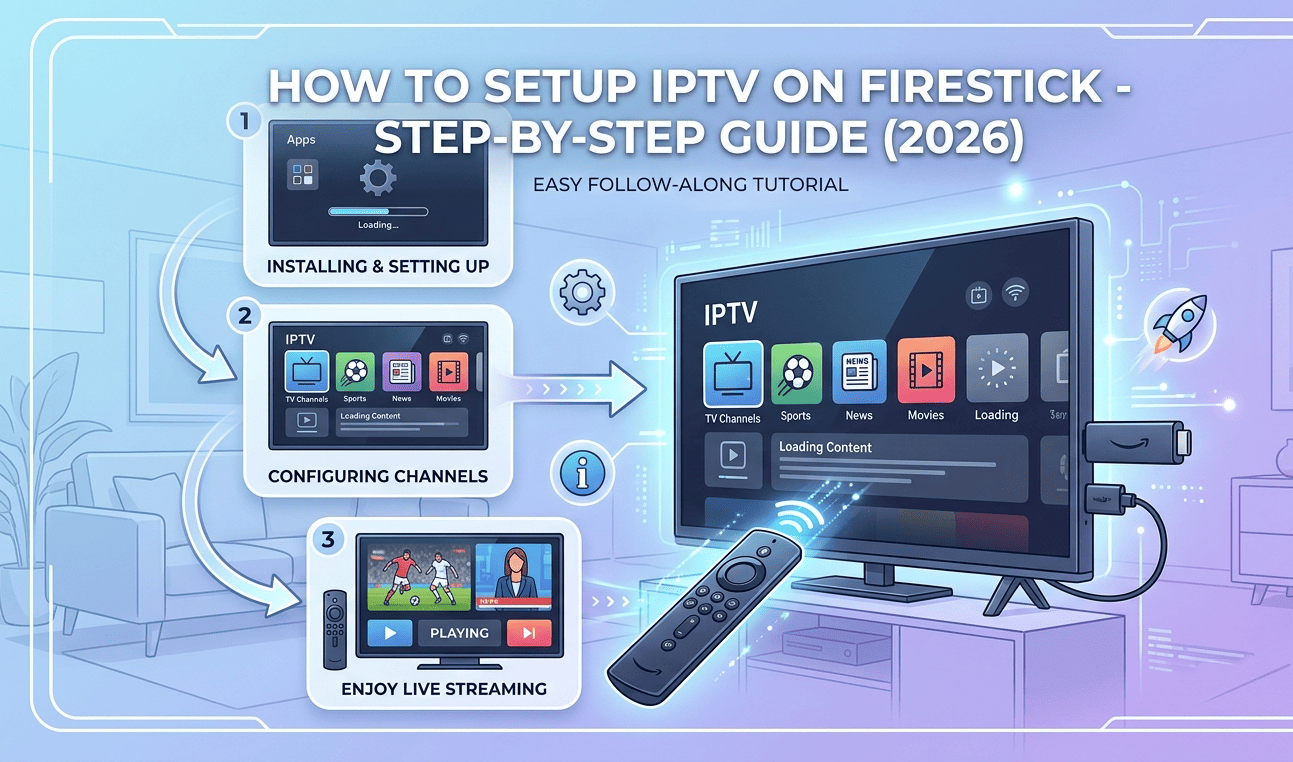
The Amazon Fire TV Stick is the most popular device for watching IPTV — and for good reason. It’s affordable, compact, and powerful enough to stream thousands of live channels in HD and 4K quality. But if you’ve never set up IPTV on a Firestick before, the process can feel confusing.
This guide walks you through every step, from preparing your Firestick to watching your first live channel. No technical background needed — if you can use a TV remote, you can do this.
What You Need Before Starting
Before we begin, make sure you have these three things ready:
1. An Amazon Fire TV Stick — Any model works, but the Fire TV Stick 4K or 4K Max gives you the best performance. Older models (2nd gen and above) work fine for HD streaming.
2. A stable internet connection — You need at least 10-15 Mbps for HD streaming and 25+ Mbps for 4K. A wired Ethernet connection using an Amazon Ethernet Adapter gives the best results, but Wi-Fi works for most people.
3. An active IPTV subscription — Your IPTV provider will give you one of two types of login details:
- Xtream Codes API — A server URL, username, and password
- M3U Playlist URL — A single web link containing your channel list
If you don’t have an IPTV subscription yet, read our guide on What Is IPTV? to understand how it works before subscribing.
Step 1: Allow Apps from Unknown Sources
By default, the Firestick only lets you install apps from the Amazon App Store. Since most IPTV player apps aren’t available there, you need to enable installations from other sources first.
Here’s how:
- From the Firestick Home Screen, go to Settings (the gear icon at the top right)
- Scroll right and select My Fire TV
- Select Developer Options
- Find “Install Unknown Apps” or “Apps from Unknown Sources”
- Turn it ON
Important note for newer Firestick models: On Fire OS 7 and above, instead of a single toggle, you’ll see a list of apps. You’ll need to enable the specific app you’re using to install the IPTV player (usually the “Downloader” app). We’ll cover that in the next step.
Is this safe? Yes — you’re simply allowing yourself to install apps that Amazon doesn’t sell in their store. It’s the same as installing an app from a website on your computer instead of from an app store. Just make sure you only install apps from trusted sources.
Step 2: Install the Downloader App
The Downloader app is a free tool that lets you download and install apps directly on your Firestick using a URL. It’s the easiest way to install IPTV players.
- From the Home Screen, go to the Search icon (magnifying glass)
- Type “Downloader”
- Select the Downloader app by AFTVnews (it has an orange icon)
- Click Download or Get
- Wait for it to install, then click Open
When you open Downloader for the first time, it will ask for permission to access files — click Allow.
Step 3: Choose and Install Your IPTV Player
This is where you pick the app that will actually play your IPTV channels. There are several good options, and the best one for you depends on your login type and personal preference.
Option A: IPTV Smarters Pro (Best for Beginners)
IPTV Smarters Pro is the most user-friendly IPTV player. It works with both Xtream Codes and M3U playlists, has a clean interface, and is easy to navigate.
To install:
- Open the Downloader app
- In the URL field, type the download URL provided by your IPTV provider (they usually share this in their setup instructions), or search for “IPTV Smarters Pro” in the Amazon App Store if available in your region
- The APK file will download — click Install when prompted
- Once installed, click Open
To set up with Xtream Codes:
- Open IPTV Smarters Pro
- Select “Login with Xtream Codes API”
- Enter the details your IPTV provider gave you:
- Name — anything you want (e.g., “My IPTV”)
- Username — from your provider
- Password — from your provider
- Server URL — from your provider (starts with http://)
- Click Add User
- Wait for channels to load — this may take 30-60 seconds
To set up with M3U URL:
- Open IPTV Smarters Pro
- Select “Load Your Playlist or File/URL”
- Choose “M3U URL”
- Enter a name (e.g., “My IPTV”) and paste your M3U URL
- Click Add User
- Wait for the channel list to load
Option B: TiviMate (Best for Power Users)
TiviMate is considered the best IPTV player for Firestick by experienced users. It has a sleek interface that looks like a real cable TV guide, supports multiple playlists, and offers features like catch-up TV, recording, and favorites.
The free version works well, but the premium version ($4.99/year) unlocks features like multiple playlist support, recording, and catch-up.
To install:
- TiviMate is available directly from the Amazon App Store
- Search for “TiviMate” on your Firestick
- Click Download/Get and install
To set up:
- Open TiviMate
- Select “Add Playlist”
- Choose your login type:
- Xtream Codes — Enter server URL, username, and password
- M3U Playlist — Paste your M3U URL
- Wait for channels to load
- TiviMate will automatically organize channels by category
Why choose TiviMate over Smarters? TiviMate’s EPG (TV guide) is significantly better. It shows a traditional grid-style program guide that feels like real cable TV. If you watch a lot of live TV and want to see what’s on across multiple channels at a glance, TiviMate is the clear winner.
Option C: Other IPTV Players Worth Considering
- GSE Smart IPTV — A solid free option with good M3U support
- XCIPTV Player — Clean interface, good for Xtream Codes
- OTT Navigator — Advanced features, highly customizable
For most people, we recommend starting with IPTV Smarters Pro if you’re new to IPTV, or TiviMate if you want the best viewing experience.
Step 4: Configure Your EPG (TV Guide)
The Electronic Program Guide (EPG) shows you what’s currently playing and what’s coming up on each channel — just like the channel guide on cable TV.
If you used Xtream Codes to log in, the EPG usually loads automatically. Your IPTV provider’s server sends the guide data along with the channel list.
If you used an M3U URL, you might need to add the EPG separately:
- Ask your IPTV provider for the EPG URL (it’s usually a link ending in .xml or .xml.gz)
- In your IPTV player, go to Settings → EPG or Program Guide
- Paste the EPG URL
- Click Update or Refresh
- Wait a few minutes for the guide data to download
Tip: EPG data can take 2-5 minutes to fully load on the first setup. After that, it updates automatically in the background.
Step 5: Optimize Your Firestick for IPTV
A few quick adjustments will noticeably improve your IPTV experience:
Clear Cache Regularly
IPTV apps store temporary data that can slow things down over time.
- Go to Settings → Applications → Manage Installed Applications
- Select your IPTV player app
- Click Clear Cache (not Clear Data — that would delete your settings)
Do this every 1-2 weeks for best performance.
Turn Off Data Monitoring
The Firestick’s built-in data monitoring uses system resources unnecessarily.
- Go to Settings → Preferences → Data Monitoring
- Turn it OFF
Disable App Notifications
Background notifications from apps can interrupt your viewing and consume bandwidth.
- Go to Settings → Preferences → Notification Settings
- Turn off App Notifications
Use an Ethernet Connection for Live Sports
If you watch a lot of live sports and experience buffering during peak moments (goals, touchdowns, fight finishes), the single best fix is switching from Wi-Fi to a wired connection.
The Amazon Ethernet Adapter costs about $15 and plugs directly into your Firestick’s USB port. It provides a much more stable connection than Wi-Fi, especially in homes with multiple devices sharing the same network.
Troubleshooting Common Issues
Channels Not Loading
Possible causes and fixes:
- Wrong login details — Double-check your username, password, and server URL. Even a small typo will prevent connection. Pay attention to http:// vs https:// in the server URL.
- Subscription expired — Contact your IPTV provider to confirm your account is active.
- Server maintenance — IPTV providers occasionally perform server updates. Wait 30 minutes and try again.
Buffering During Playback
Buffering is the most common IPTV issue. Here’s how to fix it:
- Check your internet speed — Run a speed test on your Firestick (search “Speed Test” in the Amazon App Store). You need at least 15 Mbps for reliable HD streaming.
- Restart your Firestick — Hold the Select and Play/Pause buttons together for 5 seconds, or unplug it for 30 seconds.
- Move closer to your router — If using Wi-Fi, distance and walls between your Firestick and router directly impact streaming quality.
- Switch to 5GHz Wi-Fi — If your router supports dual-band, the 5GHz band is faster and less congested than 2.4GHz.
- Close background apps — Hold the Home button, select “Apps,” and force-close any apps you’re not using.
For more solutions, check our detailed guide: How to Fix IPTV Buffering — 10 Proven Solutions
“App Not Installed” Error
This usually means your Firestick doesn’t have enough storage space.
- Go to Settings → Applications → Manage Installed Applications
- Uninstall apps you don’t use
- Clear cache on large apps
- The Firestick has limited storage (8GB on most models), so keep only essential apps installed
Black Screen with Audio
If you hear sound but see a black screen:
- Switch to a different channel, then switch back
- Change the video player in your IPTV app settings (try switching between “Hardware” and “Software” decoder)
- Restart the app
Firestick Models Compared for IPTV
Not sure which Firestick to get? Here’s a quick comparison:
| Model | Resolution | RAM | Best For |
|---|---|---|---|
| Fire TV Stick Lite | 1080p HD | 1 GB | Budget option, basic IPTV |
| Fire TV Stick (3rd Gen) | 1080p HD | 1 GB | Standard HD streaming |
| Fire TV Stick 4K | 4K Ultra HD | 1.5 GB | 4K IPTV streaming |
| Fire TV Stick 4K Max | 4K Ultra HD | 2 GB | Best performance, Wi-Fi 6 |
| Fire TV Cube | 4K Ultra HD | 2 GB | Hands-free with Alexa, fastest |
Our recommendation: The Fire TV Stick 4K Max offers the best balance of performance and price for IPTV. The extra RAM and Wi-Fi 6 support make a real difference when streaming live content.
Frequently Asked Questions
Can I use IPTV on a Firestick without a subscription? The Firestick itself doesn’t require a subscription for IPTV. However, you need an active IPTV subscription from a provider to access live TV channels and content.
Is it legal to install IPTV apps on a Firestick? Installing IPTV player apps on your Firestick is completely legal. These apps are just media players — similar to VLC on a computer. The legality depends on the content you access through them.
Which is better for Firestick — IPTV Smarters or TiviMate? For beginners, IPTV Smarters Pro is easier to set up. For the best overall experience, TiviMate’s TV guide interface and advanced features make it the preferred choice among experienced IPTV users.
Do I need a VPN for IPTV on Firestick? A VPN isn’t required but is recommended. It prevents your ISP from throttling your IPTV traffic (which can cause buffering) and adds a layer of privacy. Popular options include ExpressVPN, NordVPN, and Surfshark — all have Firestick apps.
Can I use two IPTV services on the same Firestick? Yes. You can install multiple IPTV player apps, or some apps like TiviMate Premium support multiple playlists within the same app.